F.A.Q
Why do spells like Gracious Gift of Mana not show up in the spell counts table?
- Some spells do not have messages when they land players and do not appear in the log
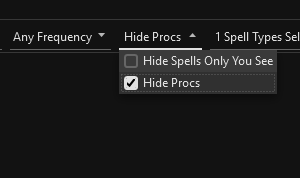
- For Gracious Gift of Mana, it has a spell message but only you can see it in your log. These spells are hidden by default as the main purpose of the spell count table is to compare your spell counts with other players
- To view hidden spells, use the dropdown at the top as shown below:
What is "Use EMU Server Parsing" and when should I enable it?
- The Use EMU Server Parsing option tells the parser which log format to expect
- Turn it ON if you are playing on an emulator server (P99, Project Quarm, etc.)
- Turn it OFF if you are playing on live servers (EverQuest, EverQuest Legends)
- Having this set incorrectly can cause a variety of issues:
- Spell damage not showing up in the DPS Summary
- DoT damage missing or under-reported
- Classes not being detected correctly
- Mob names showing incorrectly or pets confused with NPCs
Why does unknown or spell names show in the DPS Summary?
- If a DoT is on an NPC and the player dies or zones it may stop reporting the player and say unknown instead
- Check the damage breakdown for the Unknown player to get a better idea of the cause
- Unknown is also included to make sure all damage is counted for the group or raid
- If a name of a spell is listed in the DPS Summary it may be for a similar reason
- Sometimes if the spell is a proc or other effect related to a DoT where the player has left the zone it may now create an older style entry in the log file where the spell name is in the position of where the player name usually is and the player name is absent. This case should be fairly rare.
- See the What is Use EMU Server Parsing? FAQ entry below for more information.
Why don't the Damage Meter values match what I see when selecting fights in the DPS/Tanking Summary?
- The Damage Meter has a toolbar with two buttons: DPS and Tank
- DPS shows damage dealt by players (compare this to the DPS Summary)
- Tank shows damage absorbed by players while tanking (compare this to the Tanking Summary)
- Make sure the correct button is selected based on which summary you are comparing against
- The active button will be highlighted in orange, while the inactive one remains white
- If you're comparing to the DPS Summary, click the DPS button on the Damage Meter toolbar to ensure it is showing damage dealt and not tanking stats
When using Trigger Log, I would like a quick way to edit the Trigger for the log entry.
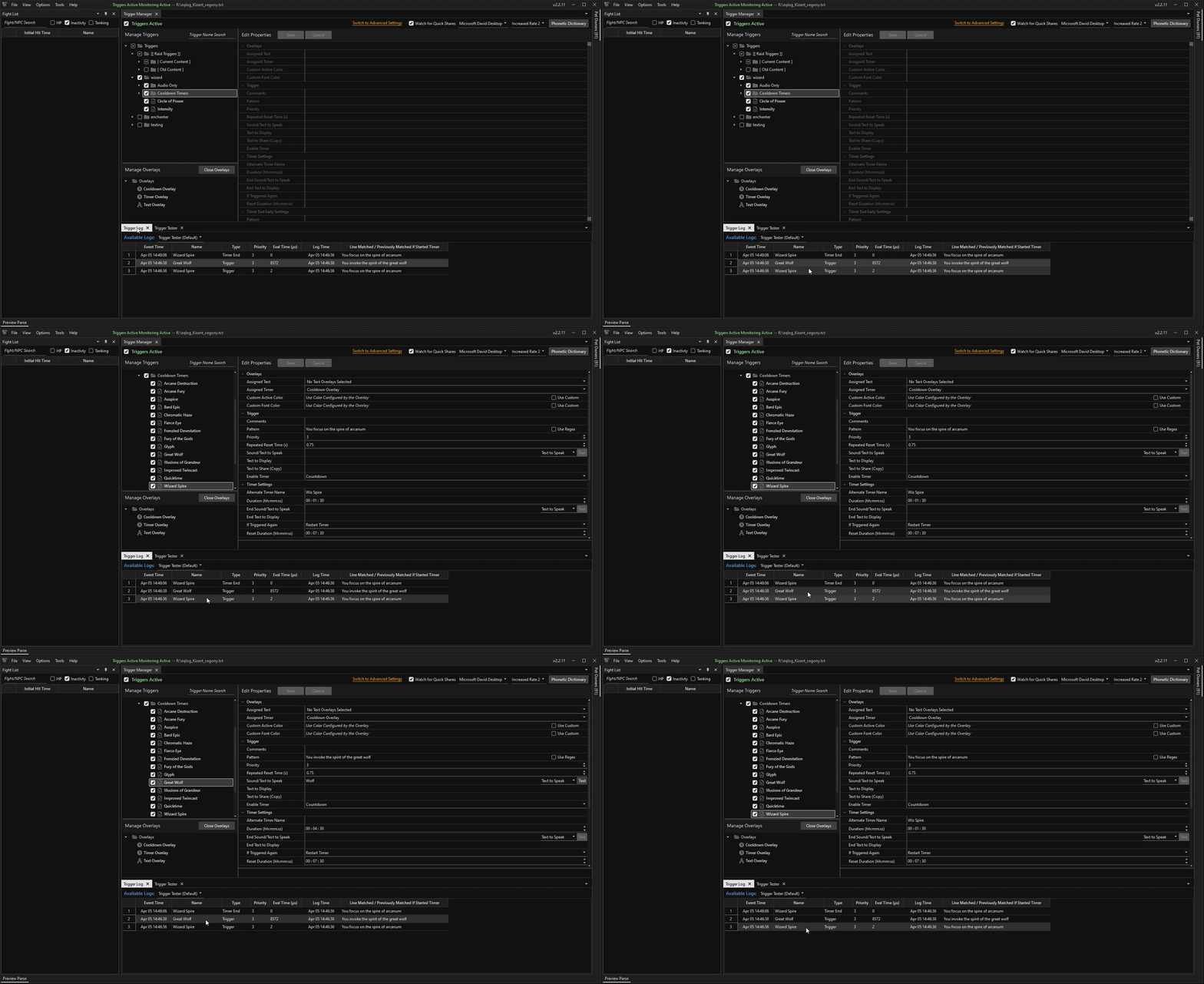
- When you select a row in the Trigger Log it will select the trigger in the Trigger Manager as long as you have it open. If so, just switch back to that tab and check
- The second way to quickly find a trigger is to use the Trigger Search box above the folder tree where you create triggers. It searches by name and by the pattern fields
- You may also find it useful to drag-and-drop the Trigger Log or Trigger Manager tabs around so that you can see both at the same time as shown below:
My triggers work in the tester but not in-game (or nothing fires at all)
- Check that EQ Chat Filters are turned off in EverQuest itself
- In EQ go to Options → Chat Settings and look for filters related to DoT, spell, and combat messages
- If these filters are enabled, EQ will silently block those messages from being written to the log file before the parser ever sees them
- Make sure your trigger pattern exactly matches the actual in-game log line
- A common issue is that EQ uses a backtick character ` instead of an apostrophe ' in some messages
- Another common issue is that the test string is missing words from the actual log line
- Open the Trigger Log tab after playing and copy the exact log line to verify your pattern matches
Why are my Overlays not showing or they use the wrong colors?
- Specify the Overlay in the Trigger settings or verify that default is checked in the Overlay.
- The default Overlay is the fallback when no other Overlay is specified.
- Preview the Overlay and make sure it is displaying as you're expecting. Remember to save changes.
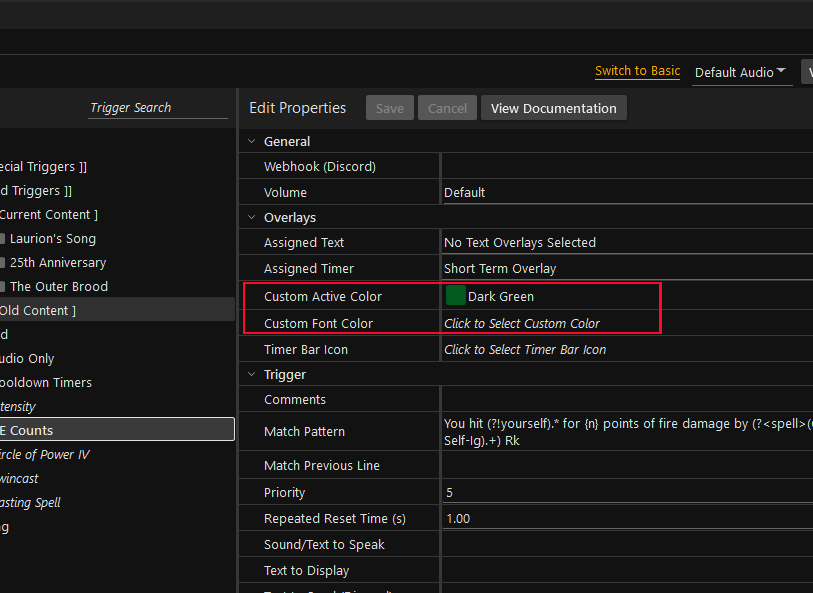
- Check the Custom Active Color and Custom Font Color in the trigger you are testing with.
- If these colors are specified they will override what the overlay is configured with.
- Even if they say Click to Select Custom Color try clicking and saving with a color as a test.
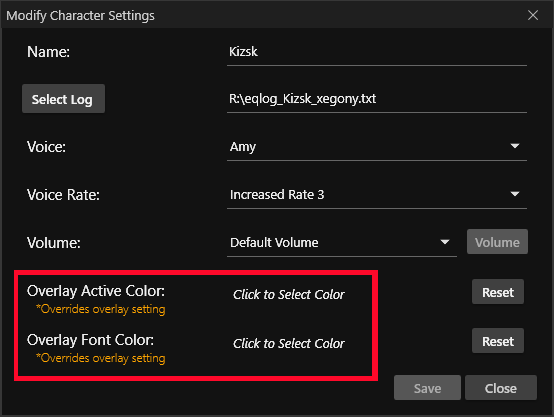
- Example images will be shown below.
- If in advanced mode, check Overlay Active Color and Overlay Font Color when you modify your character settings.
- These options are another way to choose custom colors. Sometimes they get set by accident.
- One common issue is that Transparent gets selected which makes it look like the timer never displays.
- In both cases above, it may help to set a color and see if it does anything. If so go back and reset/clear the value.
How do I get overlays to show in OBS?
- Enable Streamer Mode in the overlay settings within EQLogParser
- Open the overlay configuration and check the Streamer Mode checkbox
- In OBS, add a Window Capture source (not Game Capture)
- Set the Capture Method to Windows 10 or newer by right-clicking the source → Properties
- Select the correct window from the dropdown in OBS
- Choose the overlay window itself (e.g. "Damage Meter") and not the EverQuest window
- If the overlay still does not appear, make sure the trigger has actually fired to create the overlay window first
When using one of the right-click Copy options or sending a Quick Share. Nothing is copied.
- Check the error log for the message below. If you see it then your anti-virus software is blocking access. You'll need to figure out how to add an exception for EQLogParser.exe. This seems to be common with ESET and you may want to look for the HIPS settings and see if you can add the exception there.
- ERROR EQLogParser.UiUtil - Failed to set Clipboard Text: OpenClipboard Failed (0x800401D0 (CLIPBRD_E_CANT_OPEN))
- If you do not see an error and it is only happening with Send Parse to EQ. Keep in mind that Everquest has a limit on how many characters you can paste. If you open the Preview Parse window you'll see a count and warning if you copy too much.
Why does my Charm Pet or Merc not show up correctly in the Summary table?
- The main reason for this is naming. The parser is not good at handling names that do not look like player names
- Charm pets are extra difficult as there's no way to distinguish the pet from npc if you fight an npc with the same name
- The name problem can be improved upon but it is complicated and something will be worked on in the future
A monster or boss has a wrong name, or my pet shows up as an NPC
- EverQuest does not tell the parser which names are players, pets, or NPCs so it has to guess based on context
- This can cause confusion when a pet shares a name with an NPC, or when multiple instances of a mob are present
- Check and clean the Verified Players and Verified Pets lists
- Open these windows from the View menu → Windows
- Remove any entries that don't make sense (e.g. boss names in the players list, or your pet in the wrong owner)
- After cleaning up the lists, reload the log file so the parser can re-evaluate
- If a specific mob is misidentified during a fight, right-click it and select Assign Unknown as Pet of or Set as Verified Player to correct it
- For damage shields, DoTs, and environmental effects showing as monsters in the DPS Summary, try unchecking the Tanking checkbox in the Fight List
- This hides fights that contain only tanking data
How do I import a trigger package (.tgf.gz or .gtp)?
- Open the Trigger Manager window
- Right-click on the Triggers folder (or any sub-folder you want to import into)
- Select Import from the context menu
- In the file dialog, select the .tgf.gz or .gtp file and click Open
- The file dialog filters for supported formats, so make sure you have the correct file type selected in the dropdown
- Imported triggers will be highlighted to show they were recently added
- You can clear the highlighting by right-clicking and selecting Clear Highlighting
- Overlays are imported the same way but use the Overlays folder instead
- Overlay packages use the .ogf.gz extension
- Do not extract the .tgf.gz files onto your computer.
Coming from NAG?
- See Migrating from NAG in Getting Started — one menu command imports your entire trigger and overlay database
- In short: Tools → Migrate NAG Database, pick the folder that contains
trigger-database.json, and everything lands in a newNAG Ingest - {date time}folder under Triggers - Imported triggers start disabled so you can enable what you want — check the HTML report from the summary dialog for any NAG features that have no EQLogParser equivalent
What are the TTS Engine options and how do I change them?
- If your triggers speak text out loud, the speaking is done by one of three text-to-speech engines:
- Windows — uses the voices installed with Windows. Nothing to download, so it works out of the box on a Windows machine, but the quality depends on which voices are present. This engine is not available under Linux/Wine because WINE does not provide the Windows speech system
- Piper — fast and lightweight. Speech starts almost instantly and it uses very few system resources, so it suits older machines and busy raids where your triggers are speaking a lot. The tradeoff is that its voices have the lowest sound quality. The runtime downloads as a ~682 MB pack containing 12 voices
- Kokoro — the most natural-sounding voices of the three, but also the most demanding. It needs more memory and CPU than older systems can handle. The runtime downloads as a ~228 MB pack
- Change the engine from the Trigger Manager window: click the Tools dropdown button in the toolbar at the top and select TTS Engine
- Selecting an engine in the dropdown only updates the description below it — nothing changes until you press a button
- If that engine's runtime is not on this machine yet, the button reads Download Piper (682 MB) or similar. When the download finishes, EQLogParser switches to the new engine automatically
- If the runtime is already installed, the button says Use followed by the engine name. The switch is live: the next thing your triggers speak already uses the new engine, no restart needed
- Why you might pick one over the other:
- Windows when you want zero setup and are happy with the built-in Windows voices (not an option under Linux/Wine)
- Piper when speech has to start instantly and the system has limited resources — a good default if your triggers talk a lot during play
- Kokoro when voice quality matters more than CPU usage, on a machine that can keep up with it
- Voices belong to the engine that provides them:
- Pick one from the voice dropdown in the Trigger Manager toolbar; in advanced mode each character keeps its own voice
- Switching engines temporarily shows that engine's default voice until you pick one. A voice saved for one engine (e.g. Piper) comes back when you switch to it again
- The Piper and Kokoro runtimes are downloaded by the app into
%LOCALAPPDATA%\EQLogParser— they are not part of the installer- To reclaim the space, select the engine in the TTS Engine window and press Remove Files (you cannot remove the engine that is currently speaking; switch to another one first)
- If you followed older instructions: you no longer need to download Piper from Google Drive or unzip anything into the EQLogParser program folder. The TTS Engine window downloads, verifies and installs everything itself, and the installer cleans up old copies when you upgrade
Linux Support
EQLogParser has supported Linux since version 2.2.66 with only minor issues, and it is part of the standard install story rather than a separate product: run the same installer you would use on Windows under 64-bit Wine (tested on Ubuntu/Debian-based systems). Two things have to be inside the Wine prefix before that installer is worth running: the .NET 10 Desktop Runtime and the Microsoft Visual C++ 2015-2022 redistributable (dotnetdesktop10 and vcredist2022 in Bottles, dotnetdesktop10 and vcrun2022 in winetricks). Version 2.4.0 moved from .NET 8 to .NET 10, so a prefix that already runs an older EQLogParser needs the .NET 10 Desktop Runtime added to it; the two runtimes sit side by side, so nothing else about the prefix has to change. The redistributable is new with 2.3.62: the downloadable speech engines run on Microsoft's ONNX runtime and Wine cannot satisfy it on its own.
Two ways to get there: with Bottles or with plain Wine.
Installing with Bottles
Bottles is a Wine front-end: it keeps one prefix per program (a bottle) and installs what that program needs into it, so you never have to run wine by hand. Flatpak is the recommended way to get it, and both routes below start from the same install — run these in a terminal:
# Install Flatpak
sudo apt install flatpak

# Add the Flathub repository (where Bottles is hosted)
flatpak remote-add --if-not-exists flathub https://dl.flathub.org/repo/flathub.flatpakrepo

# Install Bottles
flatpak install flathub com.usebottles.bottles
From there you can let a recipe this project publishes do the installing for you, or make every choice yourself. Both end with the same two things inside the prefix — .NET 10 Desktop Runtime and the Visual C++ 2015-2022 redistributable — so neither route is more correct than the other, and both start with the same kind of bottle: 64-bit, and a plain Wine runner — Caffe on current Bottles, or the option simply called Wine on older ones. Leave Proton alone, it is meant for games.
The runner choice only appears when the bottle type is Custom, which is why both routes below say to pick it.
The easy way: PERSONAL_INSTALLERS
This project publishes a Bottles recipe at bottles/Games/eqlogparser.yml in the GitHub repository. It names EQLogParser's dependencies, the installer to download and where the executable lands, but Bottles knows nothing about it until you tell it where to look — that is what PERSONAL_INSTALLERS does:
PERSONAL_INSTALLERS=https://raw.githubusercontent.com/kauffman12/EQLogParser/refs/heads/master/bottles flatpak run com.usebottles.bottles
Then, once Bottles is open:
- Click Create a New Bottle and name it. The recipe fills in what goes inside a bottle — it does not make one, and it cannot choose these for you — so use the same settings as the manual route below: type Custom, architecture 64-bit, Runner Caffe (Wine on older Bottles). The architecture is not cosmetic: an installer declares its own, so a 32-bit bottle will not list EQLogParser at all.
- Open the bottle's Install App page (newer Bottles label it Installers) — EQLogParser is now in that list with its own icon, instead of you pointing at a file you downloaded.
- Press the installer's download button and Bottles runs the recipe end to end: it installs vcredist2022, dotnetdesktop10 and allfonts into that bottle, downloads the installer named in the recipe, runs it, and adds EQLogParser to the bottle's program list so Run App launches it. Nothing else to pick.
- Run it again whenever you want the version the recipe points at — Bottles never says a recipe changed
- The Flatpak build adds no desktop menu entry, so launch EQLogParser from inside Bottles
Tip: save that command as a shell script or a desktop shortcut. The variable has to be set on the Bottles process itself, so starting Bottles from your usual app menu will not list EQLogParser.
The manual way: build the bottle yourself
Start Bottles however you normally do — no variable needed, because you are pointing it at the installer file yourself — and:
- Click Create a New Bottle. When prompted for the type, select Custom, make sure the architecture is 64-bit, and pick Caffe as the Runner (Wine on older Bottles — not Proton), then click Create and wait for Bottles to finish setting up the environment.
- Open the bottle's Dependencies page and install these:
- vcredist2022 — required for text to speech, without it Piper and Kokoro download their files and then stay silent (item 3 under Known Issues below)
- dotnetdesktop10 — the .NET 10 Desktop Runtime EQLogParser runs on
- allfonts — optional, the font set the published recipe installs
- Press Install App → Run executable and choose
EQLogParser-install-{version}.exe, then launchEQLogParser.exefromProgram Files\EQLogParser.
Either way, on first start nothing speaks until one engine is downloaded: Trigger Manager → Tools → TTS Engine → Download (Piper, about 682 MB, or Kokoro, about 228 MB). See What are the TTS Engine options?
Installing with plain Wine
No Bottles and no Flatpak — just wine and winetricks, which is the route to take if you want to see every step or keep prefixes by hand:
- Create a 64-bit prefix and put both prerequisites in it:
WINEPREFIX=~/eqlogparser WINEARCH=win64 winebootWINEPREFIX=~/eqlogparser winetricks vcrun2022 dotnetdesktop10
- Run the installer in that prefix:
WINEPREFIX=~/eqlogparser wine EQLogParser-install-{version}.exe - Launch it and download a speech engine the same way as above
- Only one Visual C++ package belongs in a prefix: vcrun2022 covers everything from 2015 through 2022, so there is no reason to add 2015, 2017 or 2019 alongside it
Known Issues with Linux
- WPF applications are unstable with WINE so hardware acceleration is disabled
- Note the WINELOADER environment variable is used to detect WINE
- Make sure that variable exists if you notice problems
- The EQLogParser log file should show Software as the RenderMode
- Log file location: ~/.wine/drive_c/users/username/AppData/Roaming/EQLogParser/logs
- WINE x64 does not work with any windows text-to-speech engine
- Use Piper or Kokoro instead — both work under Wine, and the TTS Engine window in the Trigger Manager downloads one for you. See What are the TTS Engine options?
- Speech stays silent after a download that reported success, and the error log says
Unable to load DLL 'onnxruntime' … Module not found- The prefix is missing the Visual C++ 2015-2022 redistributable: add vcredist2022 in Bottles or run
winetricks vcrun2022, restart EQLogParser and press Use again. No re-download is needed - The pack itself is fine — every file is checksum-verified as it installs, which is why the download succeeds. Only the Microsoft runtime that reads those files was missing
- The prefix is missing the Visual C++ 2015-2022 redistributable: add vcredist2022 in Bottles or run
- Each speech engine downloads several hundred MB into the prefix, at
~/.wine/drive_c/users/username/AppData/Local/EQLogParser(under Bottles that is inside the bottle's owndrive_c)- Remove Files in the TTS Engine window gives the space back; you have to switch to another engine first
Feedback
Please use the Discussion and Issues links at the top right of this page for submitting feedback. They will take you to the Github project for EQLogParser where everything is kept.
Guidelines
- Create account on Github if you do not have one already
- Login and post a message in either the Issues or the Discussion section
- Reading through the existing topics to see if your question has been answered before
- Bugs or feature requests should be created as an Issue
- General questions should be created in the Discussion section
- When reporting a bug be as detailed as possible
- Are you on Live servers or P99?
- What steps were taken to produce the bug?
- What is the result you were expecting?
- What have you already tried to resolve the issue?
- Are you using the latest EQLogParser?
- Have you checked the error log from the Tools menu?
- When checking the error log look for any exceptions or ERROR statements, etc
- If a bug is related to data not being parsed or a trigger not matching
- Include the line from your log file that has the data
- If trigger related then include the Regex or screenshot of your Trigger settings